
Desktop explorer
The Tauri desktop app explores the same SQLite snapshots as the CLI and TUI.
Its relationship view is an interactive Cytoscape.js canvas whose graphs are
built by the Rust side (topology_graph) with one non-negotiable rule:
every resource in scope is represented — drawn as its own node, folded
into its host (NICs and disks into their VM, child resources into their ARM
parent), or aggregated into a ×N tile — and the status chip states the exact
arithmetic. Nothing is silently truncated. Resource nodes are draggable, the
canvas supports pan and zoom, and directional flow motion is optional. Each
link receives its own invisible source and target boundary ports: shared
endpoints fan into stable, spatially ordered taxi channels instead of sharing
one trunk. Relationship names are DOM label plates above the canvas, so no
connector can paint over their text.
Every resource uses the vendored Microsoft Azure service icon resolved for its
ARM type.
It does not maintain a second inventory and it does not query Azure while you
browse: resource details, findings, relationships, history, and comparisons
all come from the selected local snapshot.
Website endpoints also have saved screenshots, captured automatically after desktop collection or on request. Browsing saved images stays offline.
Screens
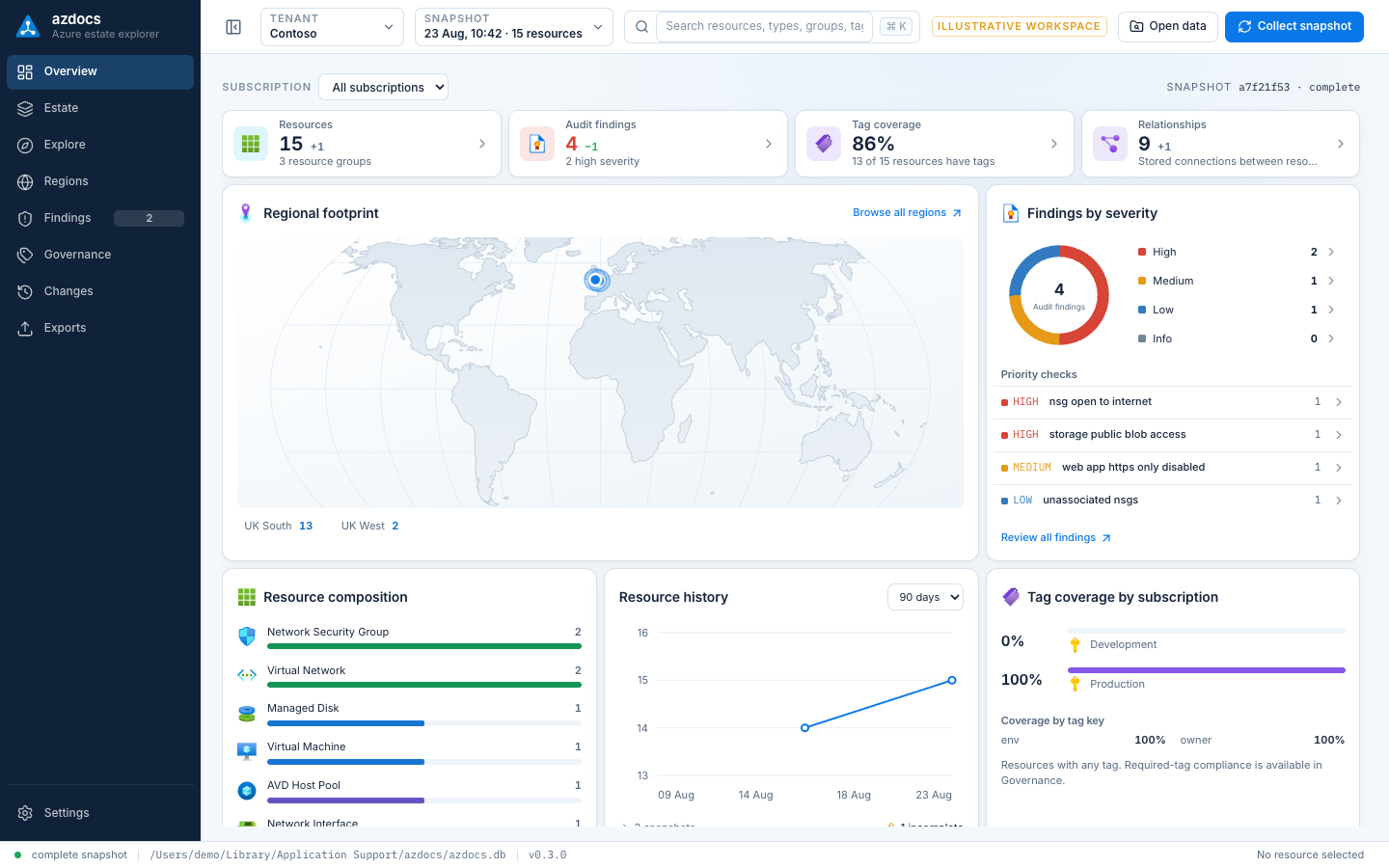
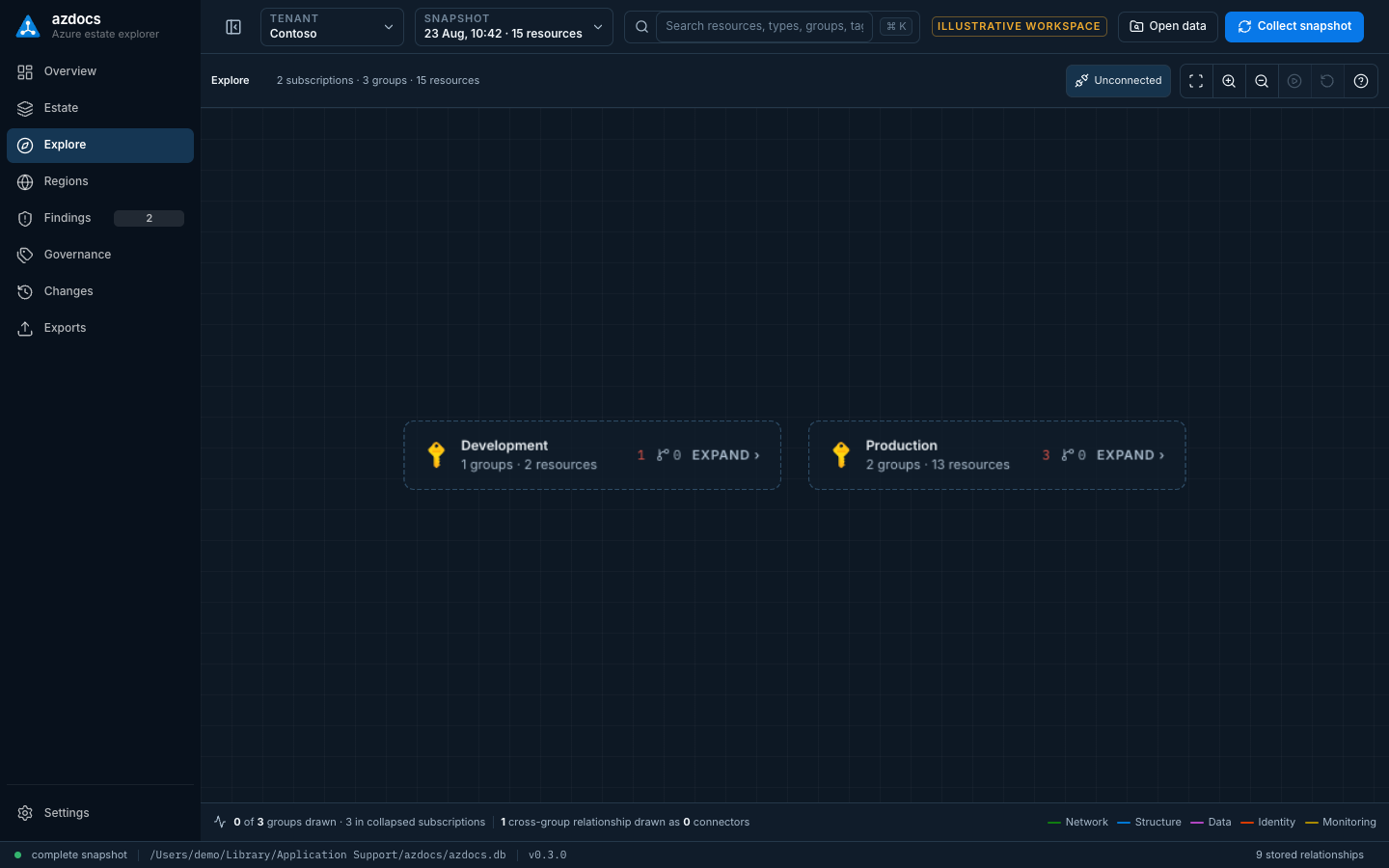
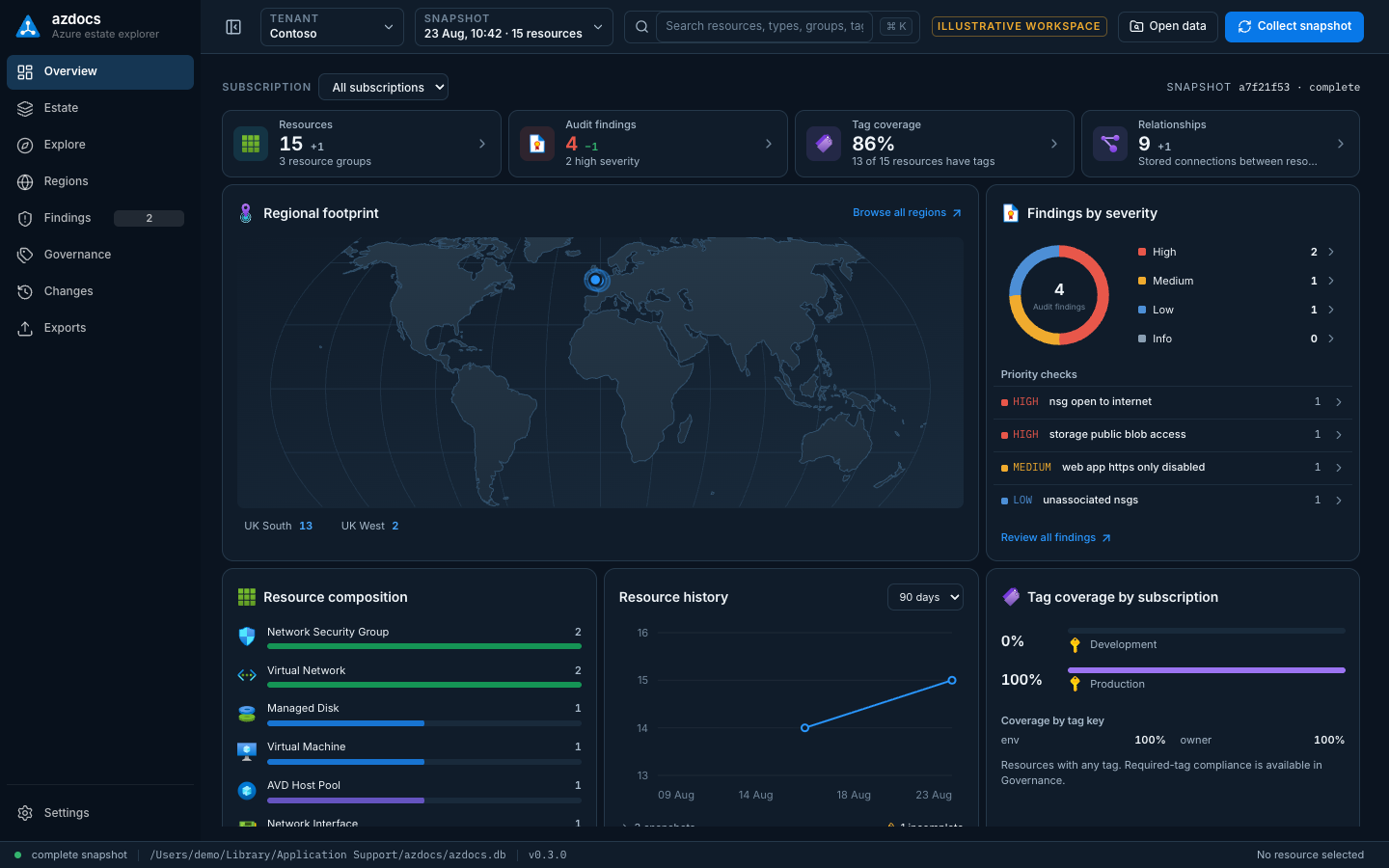
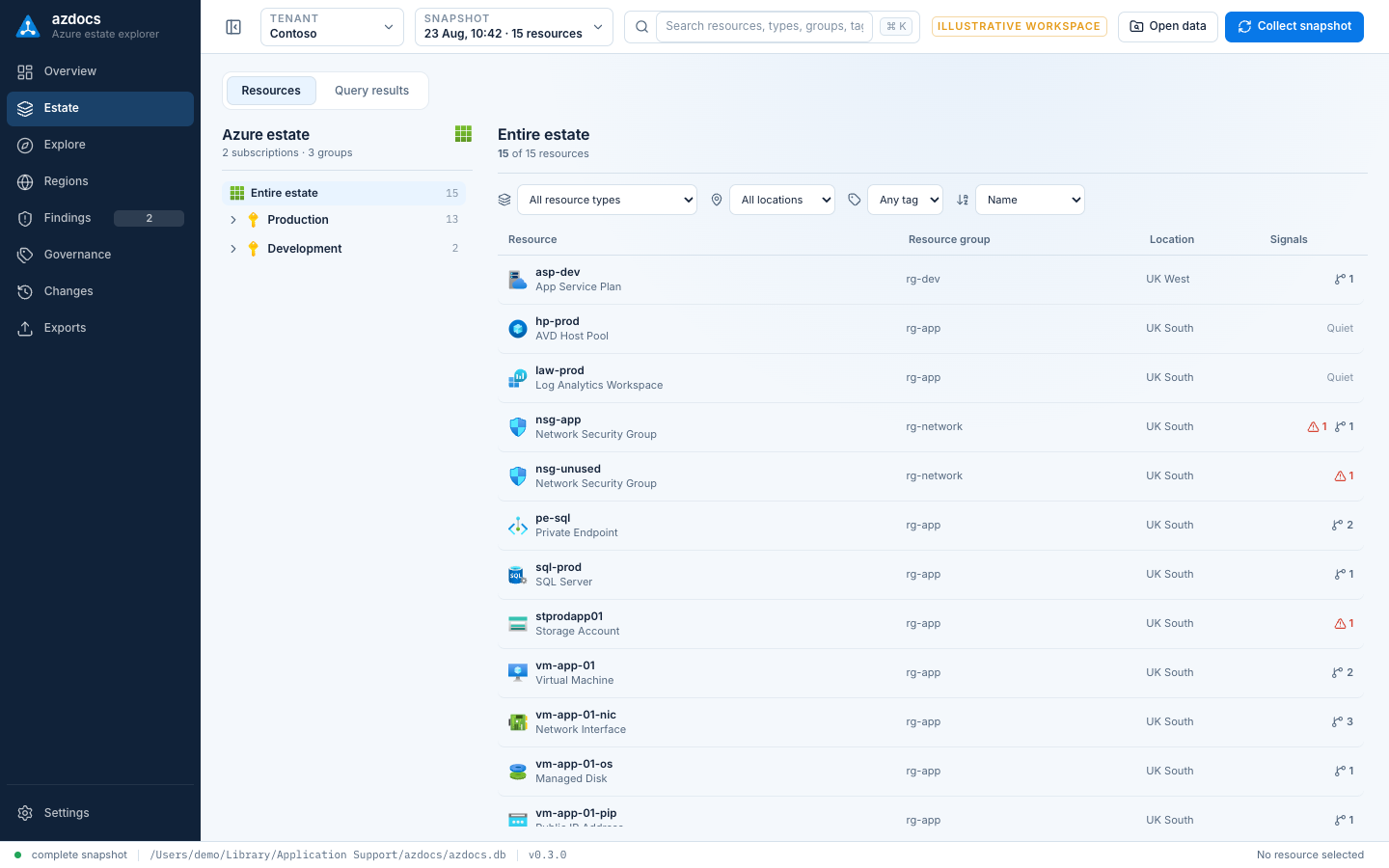
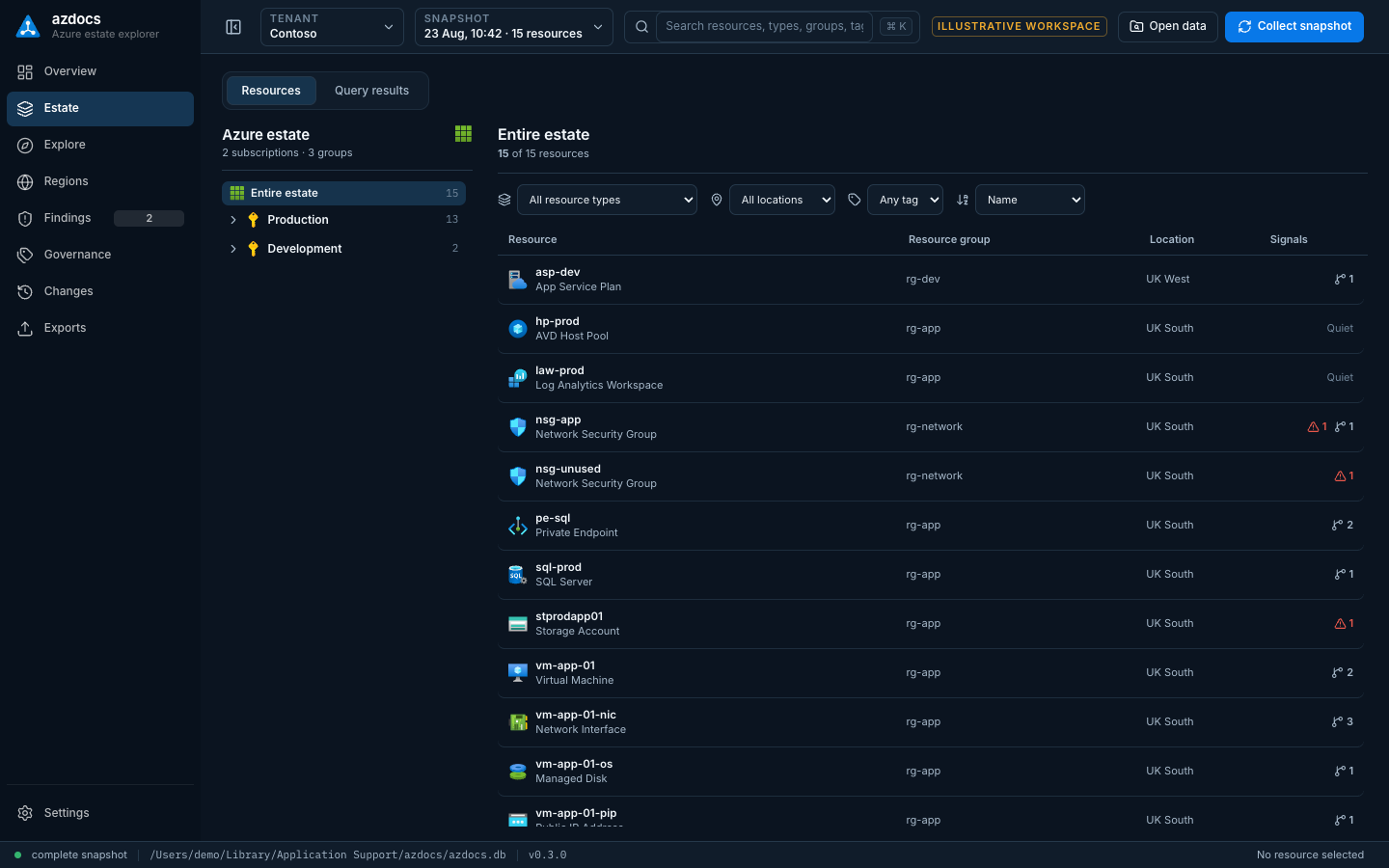
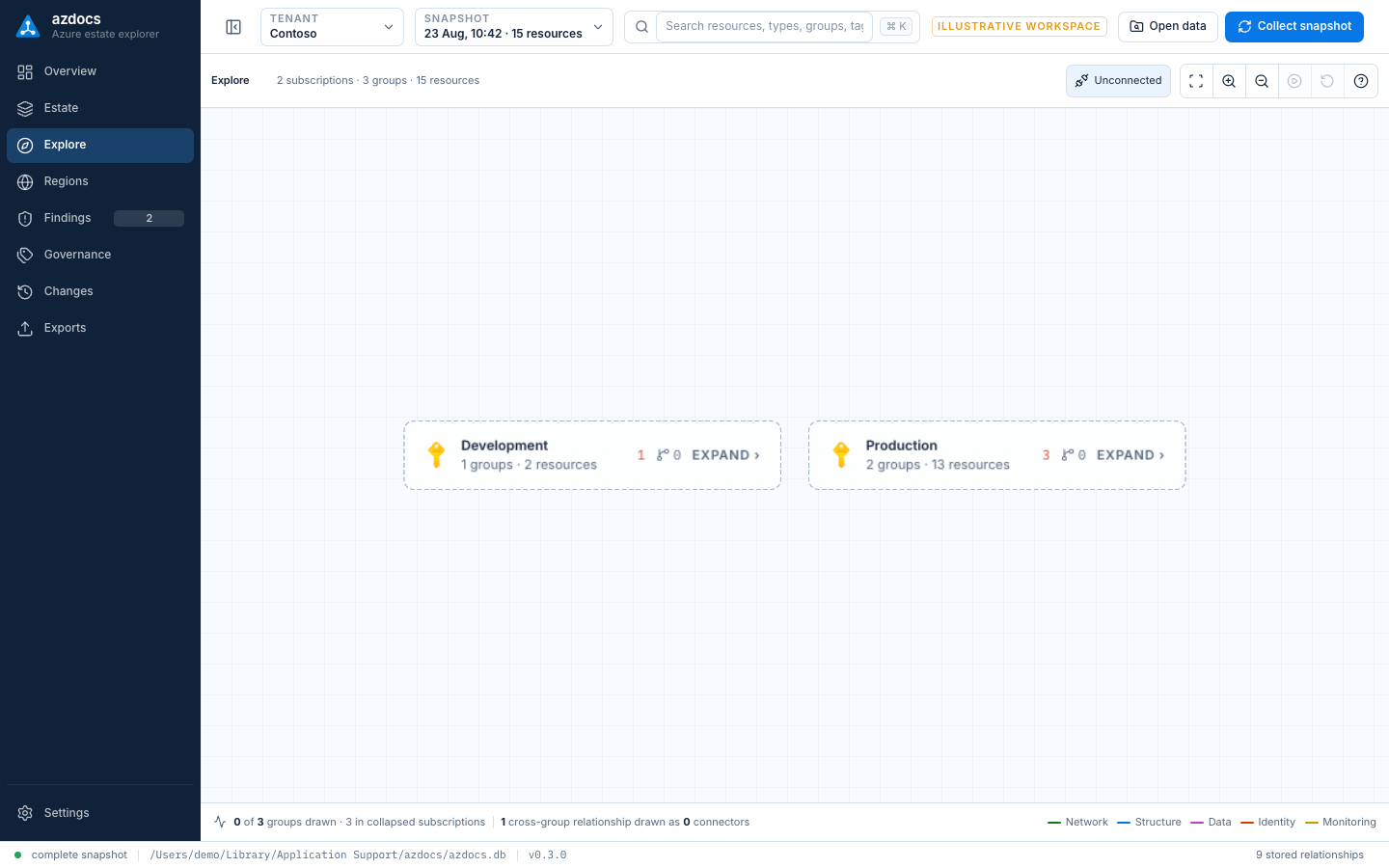
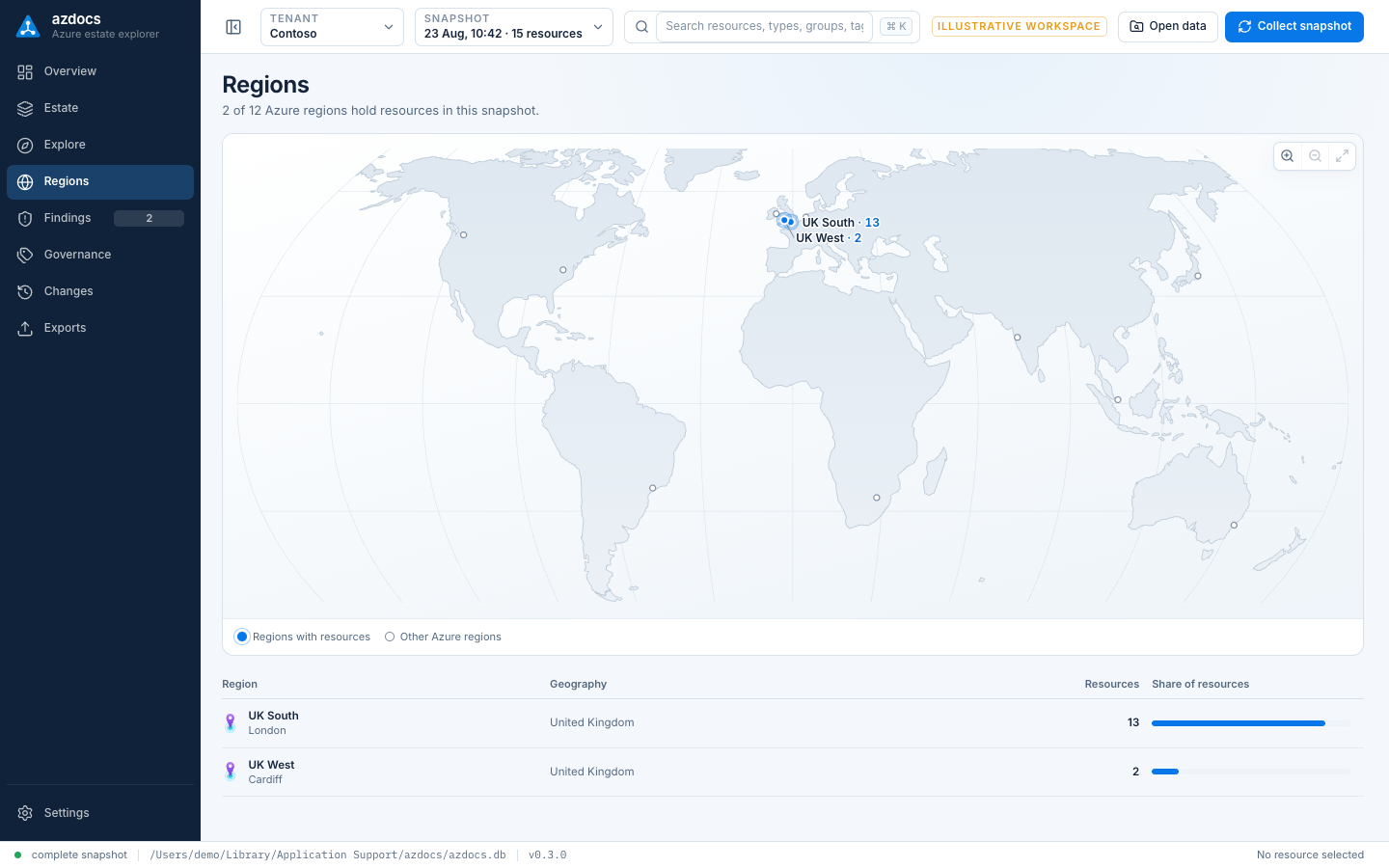
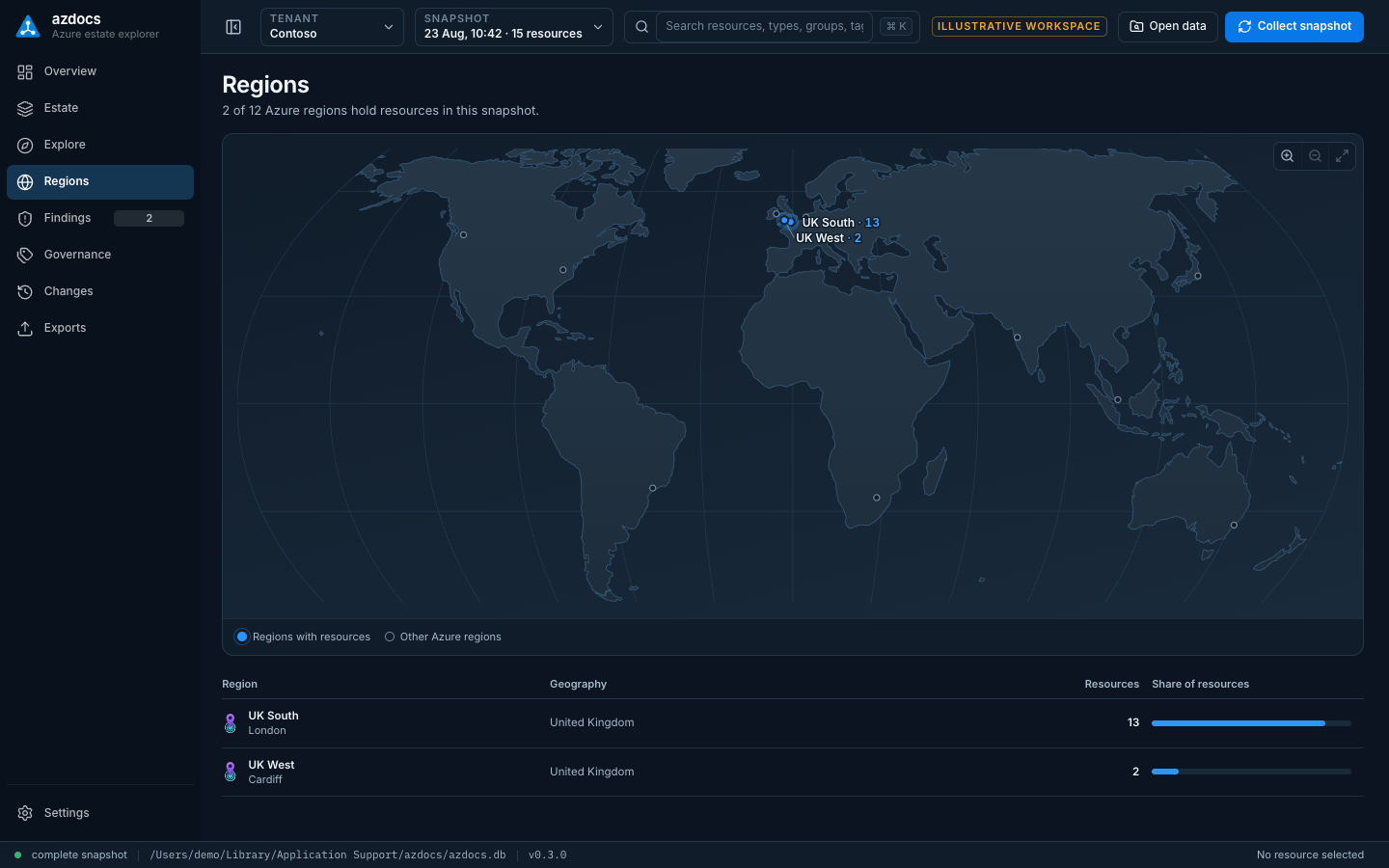
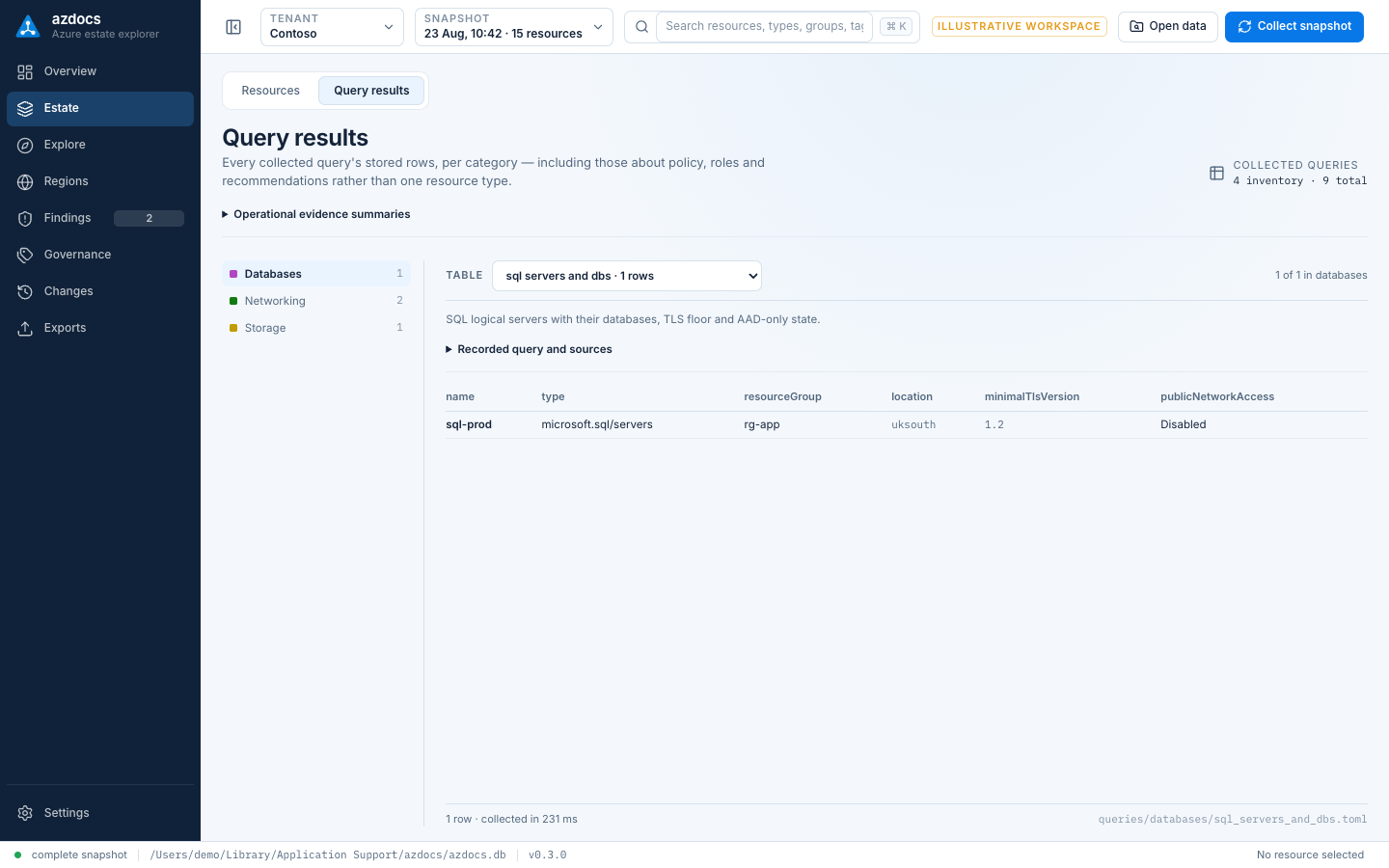
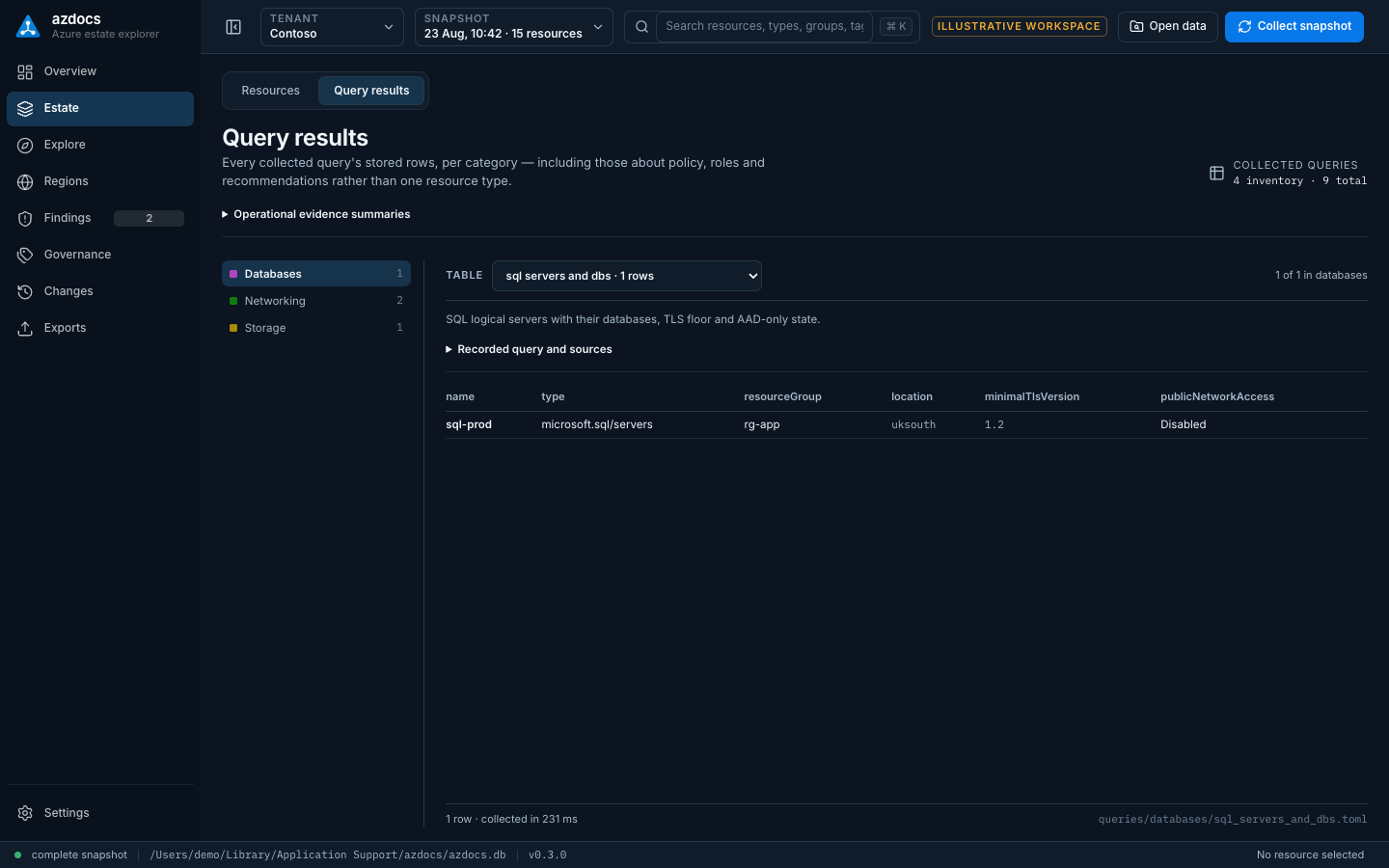
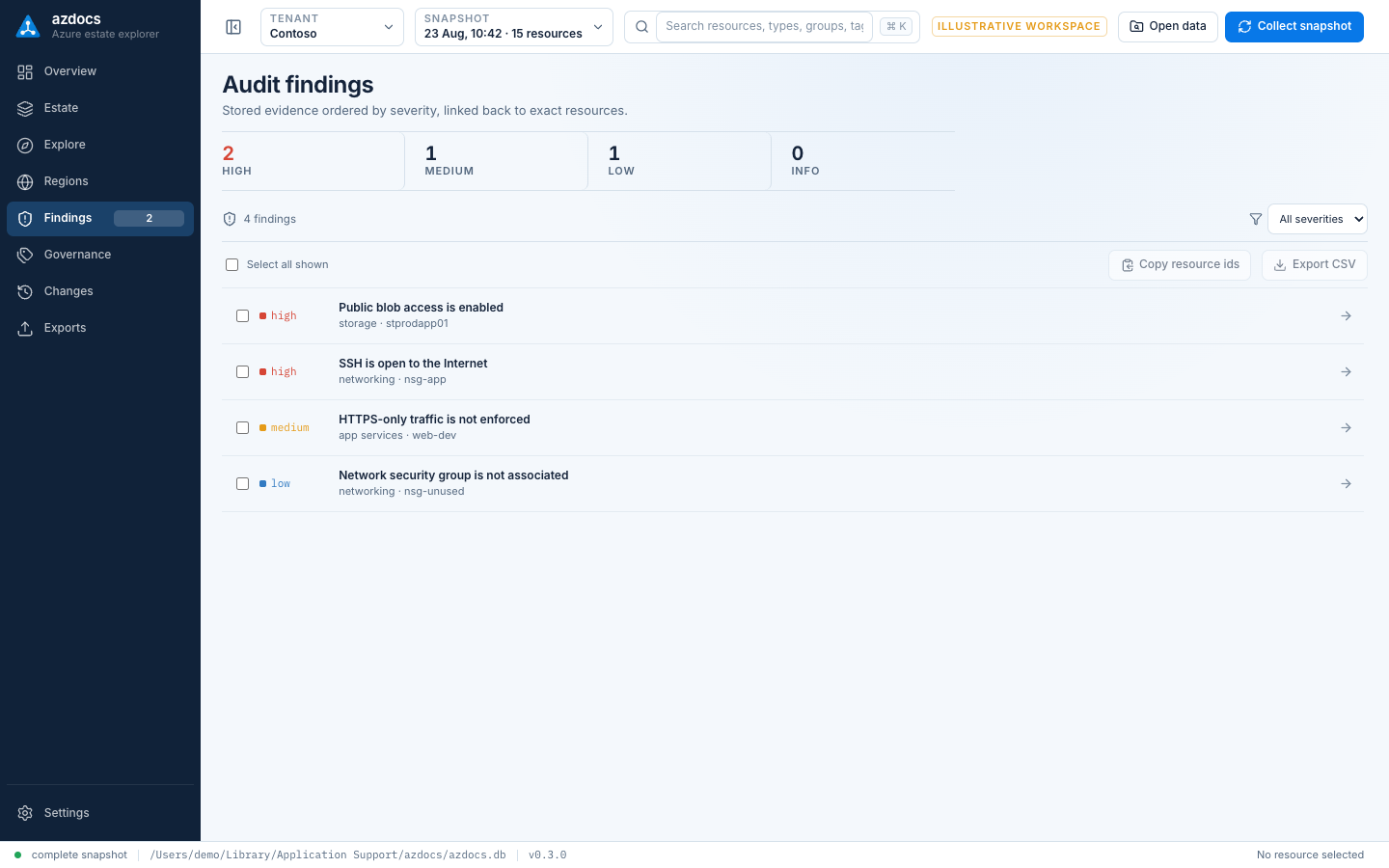
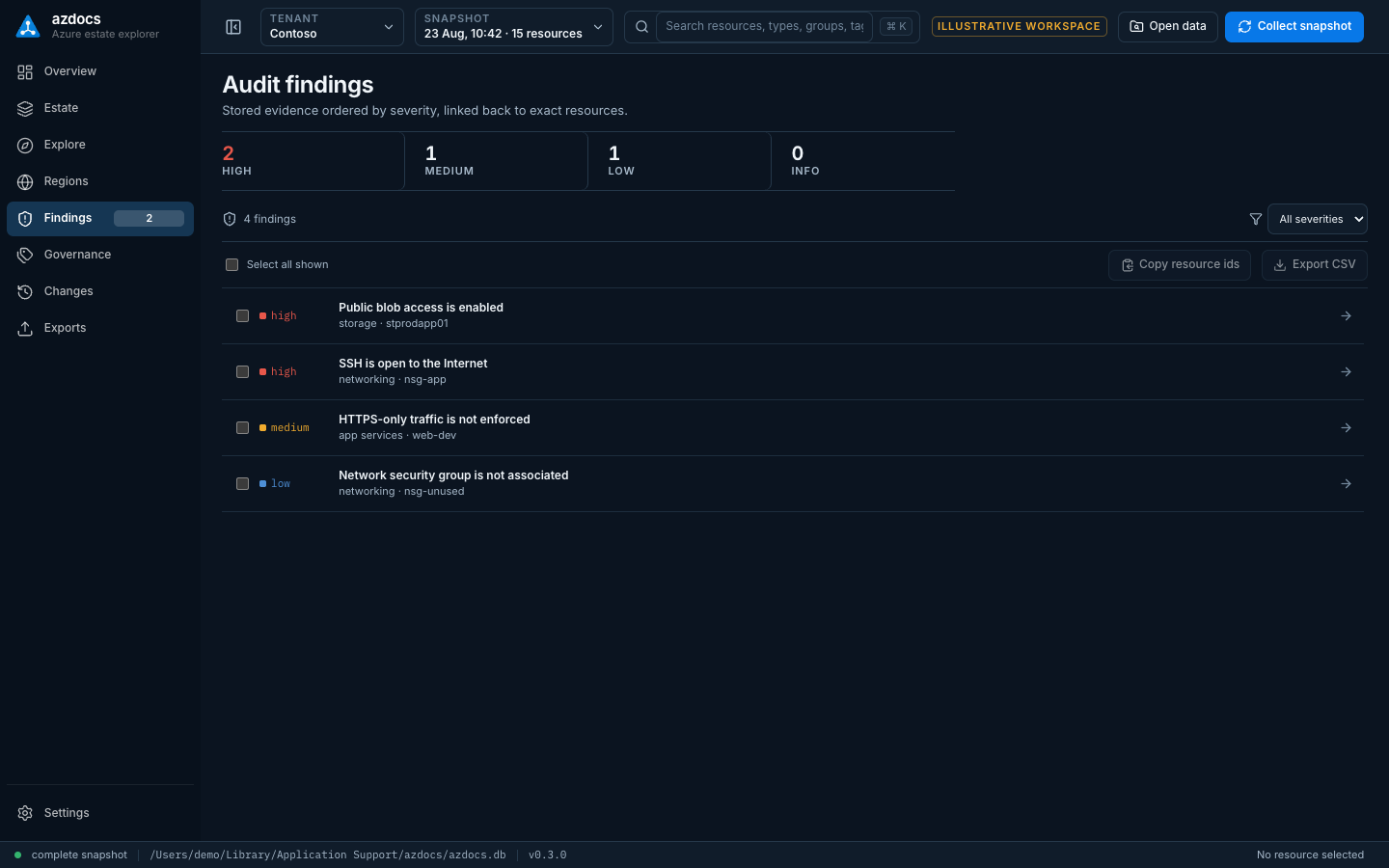
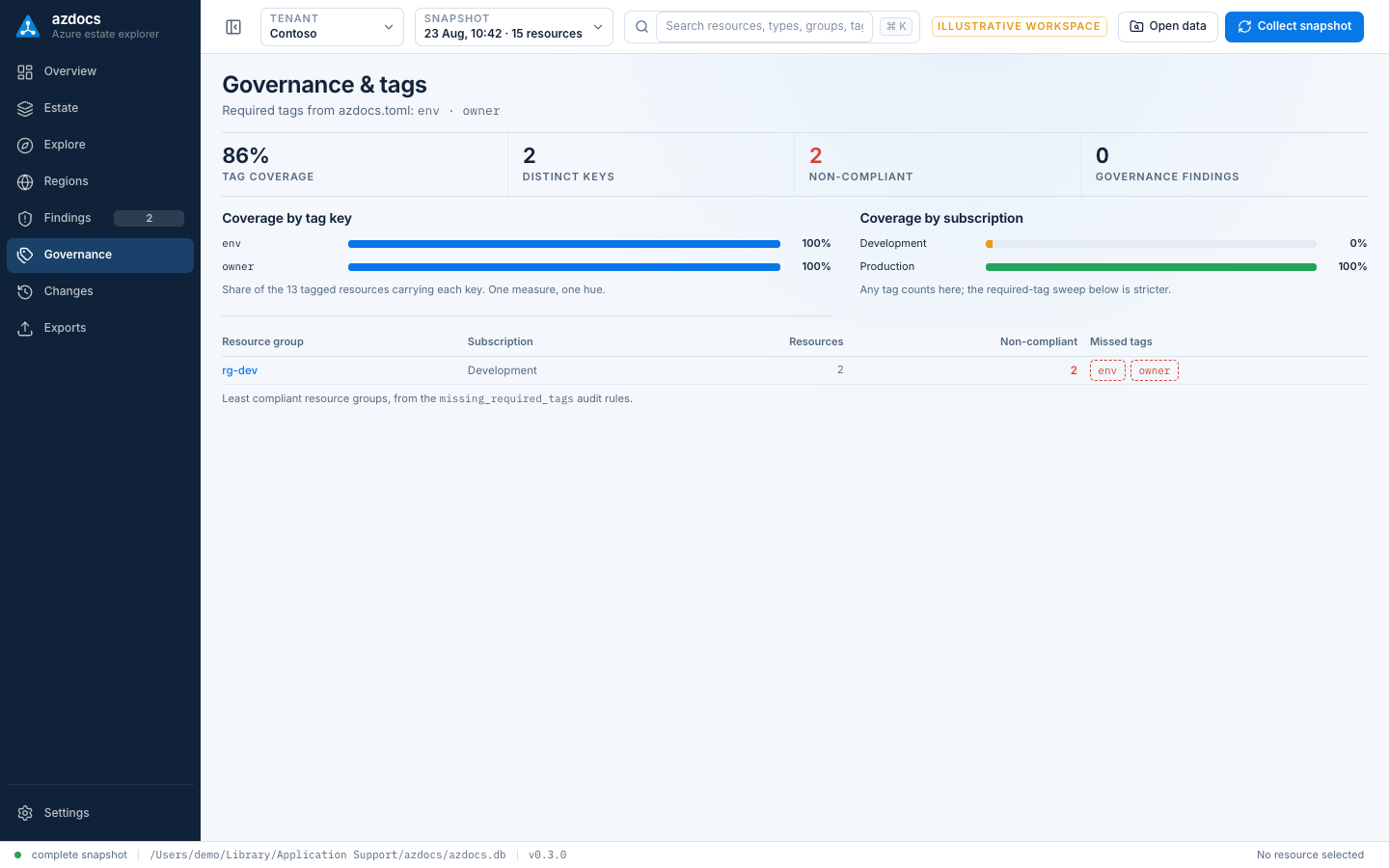
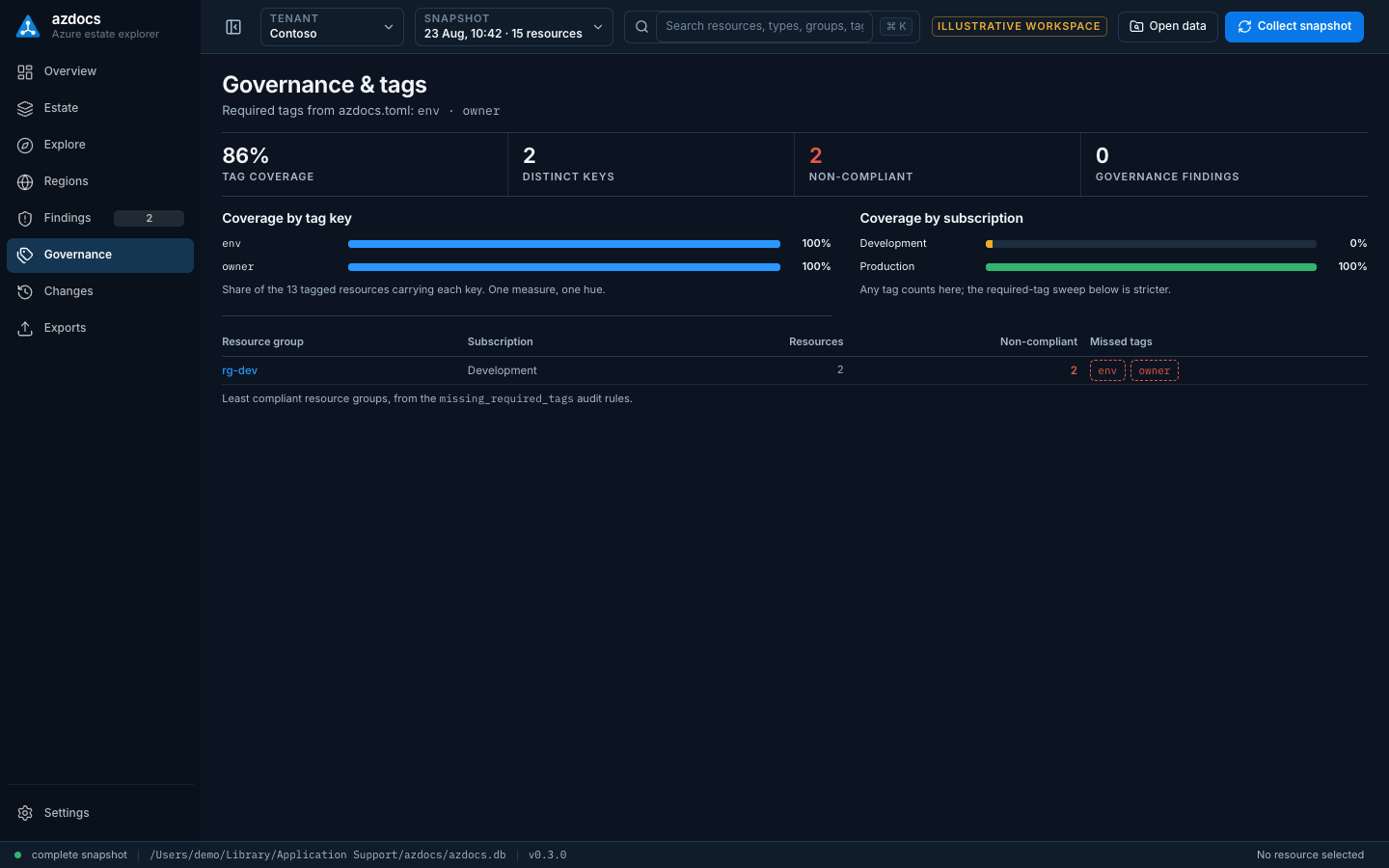
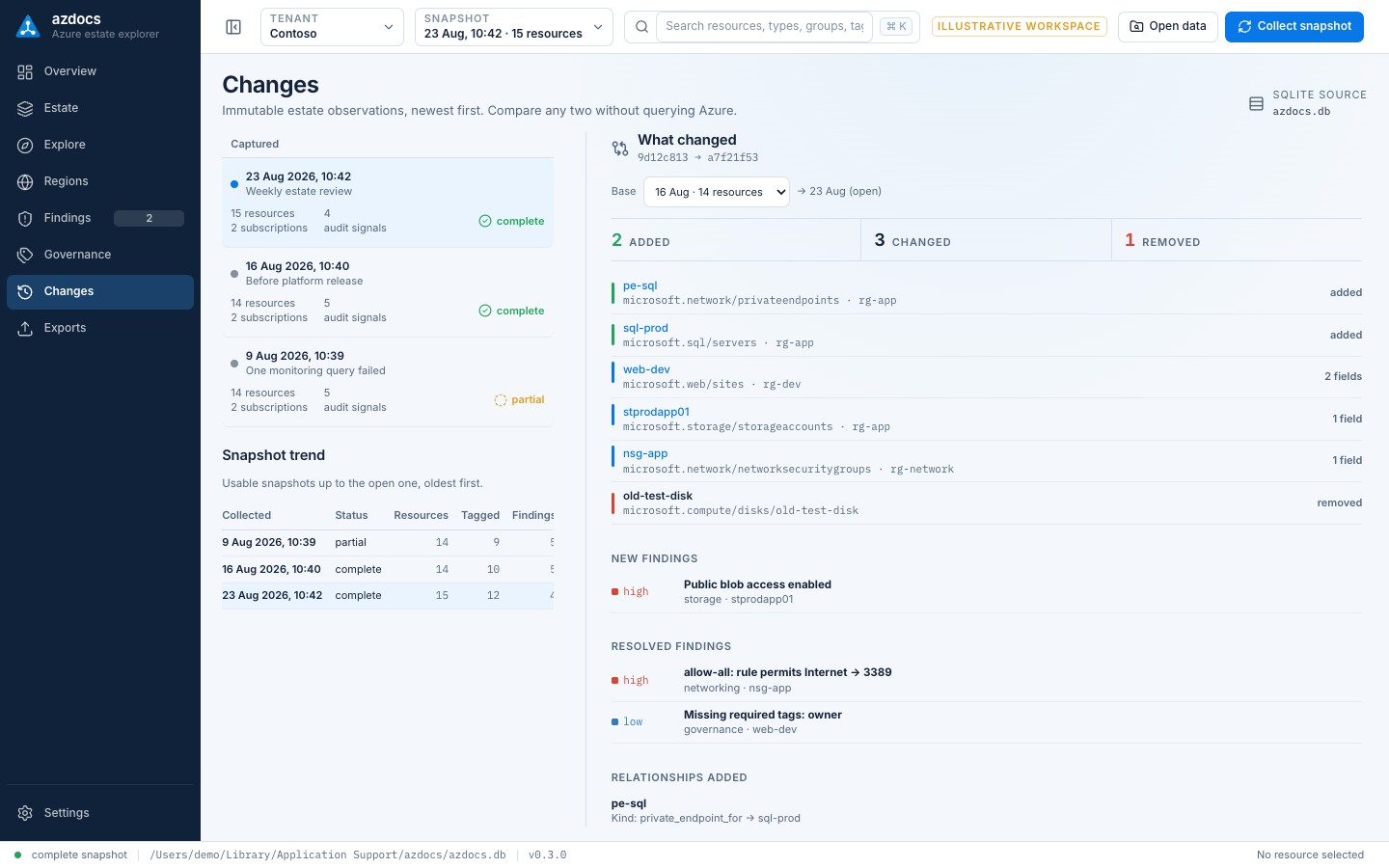
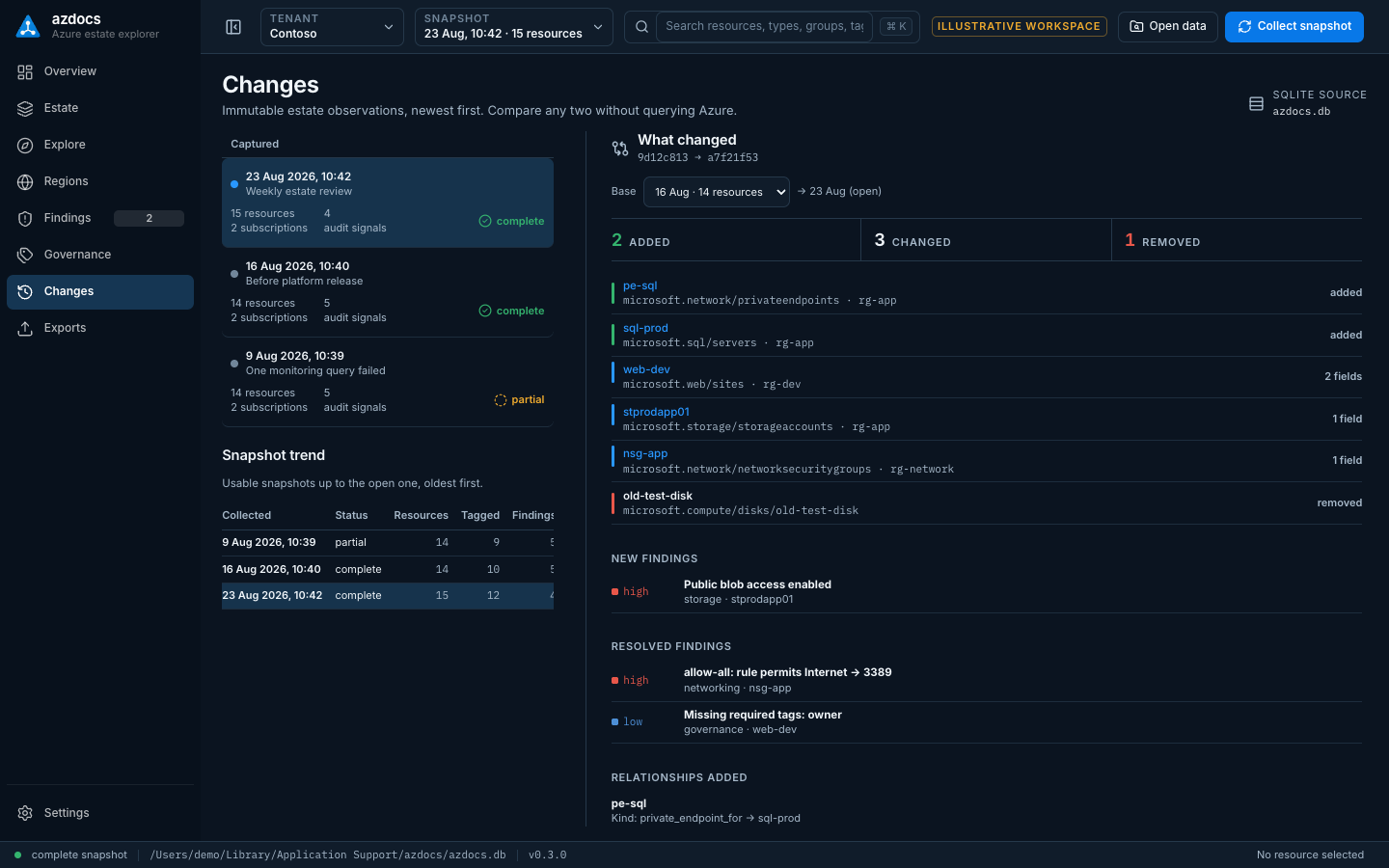
The browser preview’s illustrative estate, captured at 1440×900 in both
themes by pnpm run screenshots (see browser preview).
| View | Light | Dark |
|---|---|---|
| Overview | light | dark |
| Estate | light | dark |
| Map | light | dark |
| Regions | light | dark |
| Estate › Query results | light | dark |
| Findings | light | dark |
| Governance | light | dark |
| Changes | light | dark |
Install a release
On Apple Silicon macOS:
brew install --cask russmckendrick/tap/azdocs-desktopThe same signed and notarized DMG, plus Windows x86-64 and Linux x86-64/ARM64 packages, are available from GitHub Releases. The installation guide gives GitHub CLI download, checksum verification and platform installation commands.
Run from a source checkout
Node.js 22.12+ (22.x), pnpm 10, current stable Rust, and the Tauri v2 platform prerequisites for your operating system are required.
cd desktop
pnpm install --frozen-lockfile
pnpm run tauri dev
From the same desktop/ directory, build web assets without opening a native window:
pnpm run buildCreate a platform installer or application bundle:
pnpm run tauri buildWhat you can explore
-
Estate keeps the subscription/resource-group hierarchy, searchable resource ledger, and resource inspector visible together. Filter by scope, type, location, resource name, ARM type, group, or tags. Once the view is down to one resource type, the table can show the columns of a query that describes that type — address spaces for VNets, SKUs and sizes for VMs — scoped to the selected subscription or group; child rows such as subnets or NSG rules sit under their parent. Summary returns to the standard columns. A resource’s record lists every such row under Collected detail, including patching, backup, Defender and health rows that name it. The Query results tab browses every collected query’s stored rows by category, including those about policy, roles and recommendations rather than one resource type, with each query’s recorded KQL and sources.
-
Map is a full-bleed, hierarchical graph workspace. Its initial camera fits the readable connected core; Fit all is the first control in the icon ribbon when you need the complete overview. The estate level opens with every subscription collapsed to a bar in a strip across the top; expand one and it is laid out below as a full-width grid of the resource groups that have cross-group relationships. Groups nothing crosses into share one Unconnected groups ×N tile per subscription, so the connectors are the picture rather than a wall of boxes; the tile expands in place to list its groups, and the Unconnected toggle hides it (the hidden count stays on the status rail). Click or press Enter on a group to open its group map immediately. A group map places contained and connected resources first, neighbours from other groups on boundary rails, and resources without drawn relationships in a lower secondary region outside the default camera. VNet → subnet containment remains framed, NICs/disks remain folded into their VM, child resources remain folded into their parent, and fan-outs remain represented by ×N tiles. The neighbourhood mode is available only after a resource is explicitly selected: that resource is centred, inbound relationships are on the left, outbound relationships on the right, and second-hop nodes occupy deterministic outer columns.
Zoom is semantic: full labels at readable scale, primary labels at the middle rung, then icon/count overview tiles. Text is never rendered below 11px and relationship labels appear only on the active traced path. Keyboard focus wins over pointer hover, which wins over the selected neighbourhood subject; unrelated routes fade without disappearing. Each active label sits beside the remote endpoint on an opaque plate and moves with pan, zoom, drag, resize, and camera animation. The camera adapts its fit to the graph level and available viewport: sparse group and neighbourhood maps may zoom above 1:1, while Fit all remains an overview. Scope changes and drill actions use Cytoscape’s native viewport animation and become instant when reduced motion is active. Click or press Enter on a resource to open its resource record. Use the labelled relationship-count action on the card, or press R while the card has keyboard focus, to open its neighbourhood directly. The record repeats this as Explore N relationships. Back returns through the exact group, record, and neighbourhood history, while the trail in the title bar — Map › subscription › group › resource, ending in the current page’s own name — moves directly through the hierarchy: the subscription crumb returns to the map with that subscription expanded, and the group crumb opens its group map. Aggregate tiles expand in place to expose their members. Spatial arrow keys move between graph items. The joined icon ribbon exposes Fit all, zoom, selected-path motion, subscription-lane reset, and help with visible tooltips and accessible names. The slim bottom rail reports how many groups or resources are drawn and where the rest went (collapsed subscriptions, unconnected tiles, folded hosts, filters), then how many relationships are drawn as how many connectors — the two differ because parallel relationships between the same pair share one connector — and carries the relationship-kind legend/filter. Anything hidden by a filter remains counted. If a topology request fails, the last successful graph is retained and identified as stale with Retry and Revert controls. Relationships remain Rust post-pass edges already stored in SQLite; opening this view does not add API calls.
-
Regions draws every Azure datacentre azdocs knows on one world map and highlights, labels and sizes the regions this snapshot uses; the other datacentres stay as quiet dots. Click any datacentre for its details — location, coordinates, availability zones, paired region, opening year, status and data residency — with Open resources for regions in use. Zoom with the corner controls and drag to pan. The table beneath lists each active region with its physical location, geography and share of resources, and a marker or row opens the Estate filtered to that region. Coordinates come from Microsoft’s published region data (see Azure metadata); a location the catalogue cannot place, such as
global, is noted under the table. -
Findings orders stored audit evidence by severity and links every resource-scoped result back to its resource properties. Tick findings to copy their resource ids or save them as a CSV with the same columns as
findings.csvfrom the CLI. A resource record’s Review findings and a group in Governance open the list already narrowed to that resource or group, with the same result chip the overview uses. -
Changes shows collection history, query health and the comparison with the preceding usable snapshot: added and removed resources, every changed resource with its field-level before and after values, new and resolved findings, relationships added or removed, and a trend table over the last usable snapshots. Any older snapshot can be chosen as the base; if a comparison fails the last good one stays on screen with the error above it. The comparison is fetched after the estate has painted, so opening a large snapshot never waits on it.
-
Exports generates four outcome-led artifacts from the active snapshot, optionally scoped to one subscription, one resource group or findings at a severity or above: the print-ready PDF Field Report, an editable Word Report, the Excel Data Workbook, or the Draw.io Diagram Workbook. The app deliberately omits format matrices and theme choice; HTML, CSV, Markdown, scoped diagrams, Mermaid, SVG and PNG remain available to CLI and automation users.
The global search shortcut is Cmd+K on macOS or Ctrl+K on Windows and
Linux; Cmd+/ (Ctrl+/) lists every shortcut, as does Settings ›
About; Cmd (Ctrl) with +, - and 0 scales the text between 100%
and 150%, remembered between sessions. Every resource pane and navigation action is keyboard reachable. The
estate explorer’s type, location, tag and sort filters are remembered per
tenant between sessions, and a resource record’s ARM id copies to the
clipboard with one click.
Settings
Settings stays available before the first collection and with missing or invalid
configuration. To start, add a tenant, enter its directory and application IDs,
choose a secret source, test the connection and save. Collect snapshot then
collects the active tenant. The collection dialog offers the subscriptions the
open snapshot knows as an optional scope, a free-text note stored with the
snapshot, and Stop collection while queries are running; a stopped run
keeps the finished queries as a cancelled snapshot. Invalid fields and failures appear inside Settings;
parse errors omit source lines that could contain secrets.
- Tenants: search profiles, add or rename one, choose the CLI default, or remove its profile while retaining history. Connection groups identity and credentials; Collection & audit edits subscription scope, concurrency and required tags; Report branding edits report identity, colours and paths. Typography and document geometry expand under advanced settings.
- Shared defaults: edit collection, audit and branding values inherited by tenants. Tenant fields show Inherited or Overridden. Clear an override to reset it; an explicit empty list replaces the shared list.
- Application: choose System/Light/Dark appearance, edit the shared database path, load or reload the active config and export redacted diagnostics. About shows the running version, opens the documentation and lists the keyboard shortcuts.
The form scrolls inside the workspace. Save changes / Discard changes stays visible beneath it, including in smaller windows. Unsaved configuration blocks estate switching and closing the window; save or discard before leaving. Theme preference is immediate and local. Changing a profile in the editor does not switch the active estate.
Test connection uses the current draft without saving it. It opens a modal with authentication, visible and inaccessible subscriptions, RBAC permission warnings and check time. Close with Escape or Close connection test; the form retains a compact status and View test results reopens the details. Editing the draft invalidates the result. A submitted password field is cleared; after a successful draft test, Rust can hold the new secret temporarily behind an opaque token for up to 15 minutes so Save does not require re-entry. Discarding, leaving Settings or switching identity clears it. Stored secrets are never displayed. See Permission diagnostics.
Data, tenant context and credentials
The app remembers the selected configuration and tenant locally. The toolbar’s Tenant selector resets search, navigation and snapshot selection. History, latest selection and comparisons stay inside that tenant. Tenants whose profile was removed remain browsable by ID. No history is deleted by profile edits.
storage.db_path selects the shared database. Open data or Application →
Open another… opens an existing database for the session. Saving a new path
checks and opens that location; an unusable database leaves the previous
configuration intact. Relative paths resolve beside the config file. Files are
not moved. Rust owns database and file access; the webview has no general
filesystem permission.
Export redacted diagnostics includes the config path and revision, editable values, active tenant, database path and the latest applicable collection permission check. It also works with a missing or invalid config, recording a sanitised error instead of the file contents. External config edits invalidate the saved check. Draft connection-test results belong only to that draft.
New client secret entry is write-only from the webview into Rust. Existing secrets, OAuth tokens and credential-store reads never cross back to the frontend. Native storage uses Keychain, Windows Credential Manager or Secret Service; headless profiles may explicitly name an environment variable. Store errors do not fall back to plaintext. See Configuration.
flowchart LR
    ui[Settings webview] -->|draft / write-only new secret| rust[Rust desktop boundary]
    rust --> document[Versioned TOML document]
    rust --> vault[OS credential store / explicit environment reference]
    rust -->|online test or collection| azure[Azure authentication + ARG + ARM]
    rust --> db[(Shared SQLite, tenant-filtered)]
    db -->|offline snapshot DTO| ui
    rust -->|redacted diagnostics| ui
Collection and website capture lock context switching and capture immutable config, tenant and database context when they start. Export captures its own context and remains offline. Late frontend responses are ignored after a snapshot or tenant switch. Settings tests and live preflight are read-only network paths; browsing stored evidence and downstream reporting are offline.
Offline exports
Report progress names the file currently being generated, including the optional
technical-reference.pdf or .docx companion. The assessment is written first,
so its presence does not mean the reference has finished. Exports write only
the selected deliverables; query provenance stays in the snapshot database.
The Exports workspace uses a native directory picker; the selected path is
sent to Rust only for the duration of the export. The webview receives progress
and a sorted manifest of completed files, but it never receives general file
system access. Stop export ends a run between documents and keeps what was
written; the receipt’s Open folder and Reveal buttons ask Rust to show
the files, and Rust only agrees for paths under a destination this session
exported to. Existing configuration still supplies report branding, custom
themes, logos, fonts and labels. The app’s own wording comes from the same
[branding] labels set, resolved for the active tenant — see
reference/labels.md.
Reports compose shared diagram assets once even when several report formats
are selected. The desktop diagram deliverable is the editable .drawio
workbook. CLI users can additionally request per-VNet/per-group diagrams and
SVG/PNG files per workbook sheet. Every export reads only the selected SQLite snapshot and does not
contact Azure.
Window, clipboard and security
The app runs as a single instance: launching it again focuses the open window. Window size and position are restored between launches. The clipboard and the file manager are reached through Rust commands rather than webview permissions, and the production content-security policy allows only the app’s own origin, inline styles and data URIs; the development policy adds the Vite server. Only the Azure icons and fonts the app references are copied into its bundle.
Browser preview
pnpm run dev starts the web development server without Tauri. With it
running, pnpm run screenshots drives a local Chrome through every view in
both themes and rewrites the pictures under docs/usage/assets/. Open the local
URL printed by Vite (normally http://127.0.0.1:1420) in a browser. In that mode the app uses
the canonical fixture-shaped illustrative estate and labels the toolbar
Illustrative workspace. This is for responsive and visual development;
only a Tauri window reads real databases or collects Azure data. Settings uses
illustrative profiles and mock connection results in browser preview; credential
entry and native file pickers are unavailable.
Next: Snapshots